 Skip to content

INTRODUCTION:
Next by Gooey is a creative step sequencer designed for chopping vocals, synths, and samples into rhythmic patterns.
Beyond gating, Next includes step-based panning controls, eight automatable sequences, swing adjustment, and triplet mode for deeper rhythmic experimentation.
Next is a versatile tool for generating fresh grooves, rhythmic textures, and new production ideas — making it an easy way to add inspiration to any modern workflow.
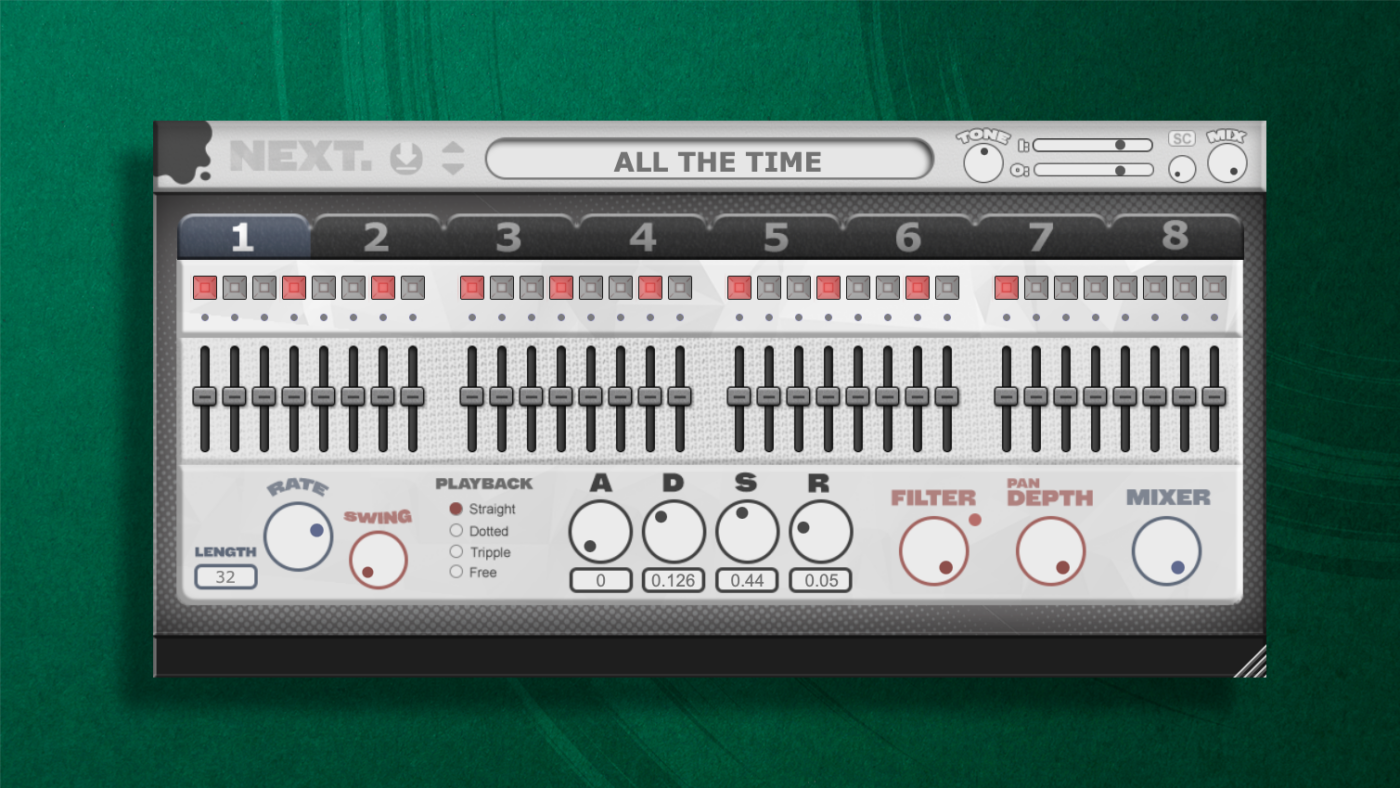
OVERVIEW
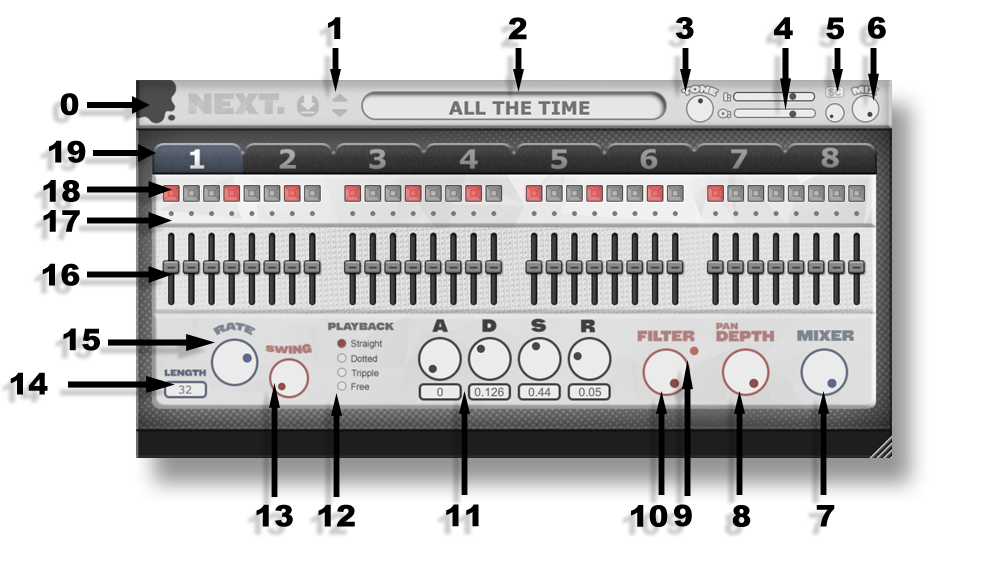
0. Gooey Icon
Displays the current plug-in version when hovered. Click the Gooey icon to bypass NEXT. When bypassed, the icon changes state to indicate that processing is inactive.
1. Preset Save & Navigation
Click the Save icon to store the current plug-in state as a preset. Presets are saved to the user’s local preset directory. Use the navigation controls to step through available presets.
2. Preset Menu
Opens the complete list of available presets.
Keyboard Shortcuts
-
Ctrl + Z — Undo
-
Ctrl + Y — Redo
3. Tone
Applies a global tonal adjustment to the processed signal, allowing the output to be shifted toward a brighter or darker response.
4. Input / Output
Input controls the signal level entering NEXT. Output controls the final signal level leaving the plug-in.
5. SC Button & Pre-Gain
The SC button enables the soft-clipping stage. The associated control provides up to +24 dB of pre-gain before the soft clipper. The SC control is inactive when the SC button is disabled.
6. Main Mix
Controls the global wet/dry mix of NEXT. This control affects the output level of all eight sequences simultaneously.
7. Sequence Mix
Controls the wet/dry balance of the selected sequence independently. Each sequence can therefore be blended against the original input signal at a different level.
8. Pan Depth
Sets the maximum stereo displacement applied by the step pan controls. Higher values increase the amount of left/right movement generated by the pan positions.
9. Filter Mode
Selects the filter response applied to the sequence. Available modes are Low-Pass and High-Pass.
10. Cutoff
Sets the cutoff frequency of the selected sequence’s filter. The filter response is determined by the selected Filter Mode.
11. ADSR
Controls the amplitude envelope applied to each sequence step:
-
Attack — Determines the time required for the step to reach its maximum level.
-
Decay — Determines the time required to transition from the peak level to the sustain level.
-
Sustain — Sets the level maintained while the step is active.
-
Release — Determines the time required for the signal to return to silence after the step ends.
12. Playback Mode
Determines the rhythmic subdivision used by the sequencer. Available modes are:
-
Straight — Standard rhythmic subdivisions.
-
Triplet — Triplet-based subdivisions.
-
Dotted — Dotted rhythmic subdivisions.
-
Free — Allows the sequence rate to operate independently of the standard rhythmic subdivisions.
13. Swing
Applies an offset to alternating steps, modifying their timing relationship to create a swung rhythmic feel.
14. Sequence Length
Sets the total number of active steps in the sequence. Reducing the sequence length causes playback to loop over the defined number of steps.
15. Sequence Rate
Determines the playback rate of the active sequence according to the selected Playback Mode.
16. Pan Sliders
Sets the stereo position of each individual step. The amount of movement is scaled by the Pan Depth control.
17. Tie
Links consecutive steps into a continuous envelope segment. A tied step does not retrigger the envelope’s Attack or Decay stages, allowing the signal to sustain across the step boundary.
18. Step On/Off
Enables or disables an individual sequence step. Disabled steps do not trigger the sequence envelope.
19. Sequence Selector
Selects which of the eight sequences is currently displayed and edited. The sequence selector is available for host automation through the DAW.
Instruction Manual – V1.0.2 – last updated 8/8/2026